
Geospatial data has a format problem.
One person sends a Shapefile. Another system expects GeoJSON. A mobile workflow needs SQLite. A colleague wants KML because they are opening the data in a familiar map application. The information may be perfectly usable, but the container around it keeps getting in the way.
MapGO's new File Conversion feature is designed for that awkward middle step. You can upload a supported geospatial file, choose one or more output formats, optionally change its coordinate reference system, and download the converted result from your browser.
No desktop GIS installation. No command-line setup. No conversion script that becomes another small project to maintain.
What Can You Convert?
MapGO detects the uploaded file type and then displays the output formats available for that particular input.
Supported formats in the conversion workflow include:
- Shapefile
- GeoJSON
- KML
- GeoPackage
- CSV
- GML
- FlatGeobuf
- SQLite
The converter also recognizes several additional geospatial extensions, including KMZ, DXF, and GPX. The exact output choices are shown after MapGO detects the source file, so you do not have to remember a conversion matrix.
That last detail matters. Not every geospatial format can represent the same information in the same way. MapGO only shows the choices available for the file you selected.
One Upload, Several Outputs
The usual conversion workflow is repetitive: upload a file, convert it, download it, and start again for the next format.
MapGO lets you tick several output formats before starting. One source upload can create a separate conversion job for each selected format.
For example, you can upload one GeoJSON dataset and request:
- GeoPackage for use in desktop GIS
- SQLite for a database-based workflow
- KML for sharing and visual inspection
- CSV for a spreadsheet-friendly extract
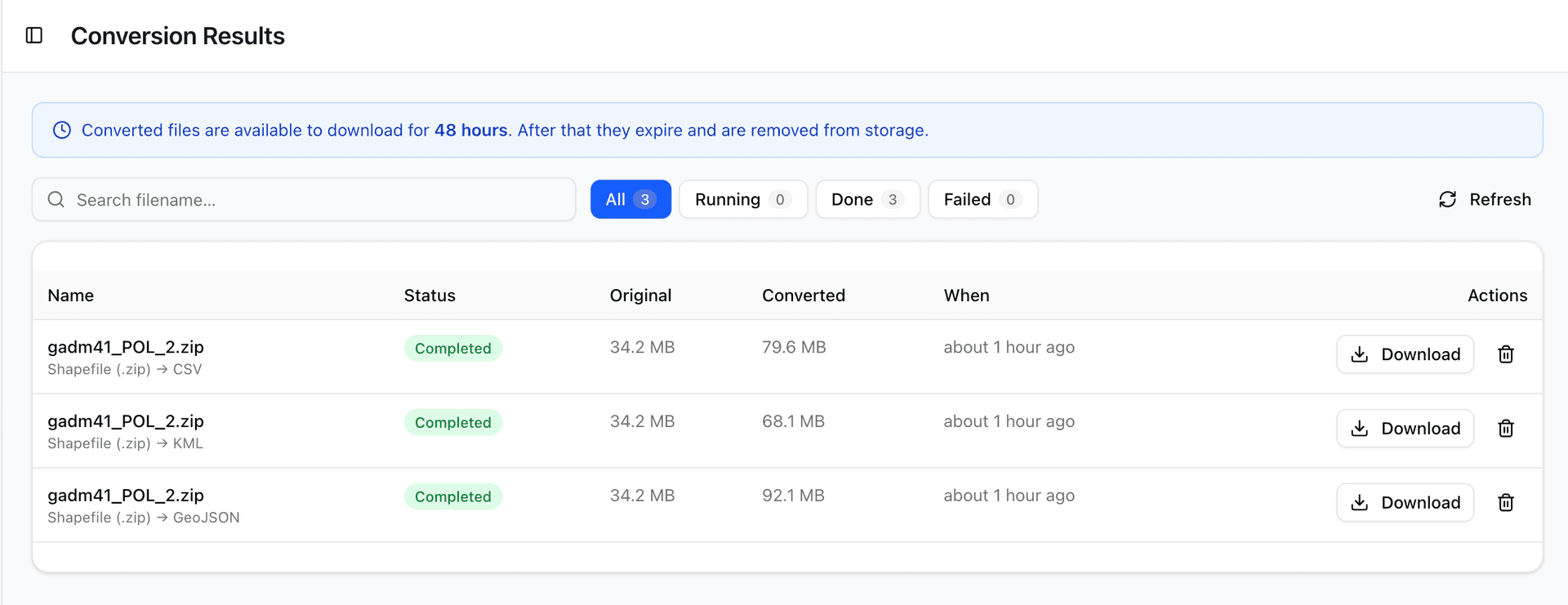
Each output appears as its own job in Conversion Results. This makes it easier to prepare the same dataset for several people or systems without repeating the upload.
Change the Coordinate System at the Same Time
File format and coordinate reference system are separate decisions.
A file can be valid GeoJSON and still use coordinates that are wrong for the next stage of your workflow. MapGO therefore includes optional CRS conversion as part of the same process.
You can confirm or override the source EPSG code, switch on Convert CRS, and enter a target EPSG code. Common shortcuts include:
- EPSG:4326 for WGS84 longitude and latitude
- EPSG:3857 for Web Mercator map tiles
- EPSG:2180 for Poland CS92
- EPSG:25832 for ETRS89 / UTM zone 32N
If CRS conversion is switched off, MapGO keeps the source coordinate system.
Shapefiles Without the Usual Confusion
A Shapefile is not really one file. The geometry normally lives in .shp, the index in .shx, the attributes in .dbf, and projection information may be stored in .prj.
MapGO accepts a zipped Shapefile, but it also lets you select the individual companion files together. The browser bundles them before upload.
If .shx is missing, the conversion service can rebuild the index. If .dbf is missing, MapGO warns you that attribute data such as names and IDs cannot be preserved. You can continue with geometry only, but you are told exactly what will be lost first.
Built for Small and Large Files
The conversion flow supports files up to a 5 GB hard ceiling. Your available limit depends on your plan and credit balance:
- Starter plan allowance: up to 50 MB per file
- Pro plan allowance: up to 500 MB per file
- Business plan allowance: up to 5 GB per file
- A positive purchased-credit balance can unlock uploads up to 5 GB
Paid plans can make unlimited conversions within their included file-size limit. Free users and paid users converting files above their included limit use purchased credits. When credits apply, one selected output format uses one credit.
MapGO shows the cost before you start, so selecting four output formats does not create a surprise later.
Follow Every Conversion
After submission, MapGO creates a conversion job and takes you to a results workflow where you can:
- See queued, processing, completed, failed, or expired jobs
- Check the original and converted file sizes
- Search by filename
- Filter by job status
- Download completed files
- Remove jobs you no longer need
Converted files remain available to download for 48 hours. After that, they expire and are removed from storage. It is a deliberate temporary handoff, not permanent cloud storage.
A Note About Verification
Format conversion is automated, and geospatial formats do not always have a perfect one-to-one relationship.
Coordinate changes may introduce rounding. Invalid geometry may need repair. Field names and data types may be interpreted differently by the destination format. A KML file, a Shapefile, and a spatial database do not share identical capabilities.
For that reason, MapGO asks you to confirm that you will verify the result before production use. Check the feature count, attributes, geometry, coordinate system, and a few known locations in your destination software.
That is not a limitation unique to MapGO. It is good practice for every geospatial conversion tool.
How to Try It
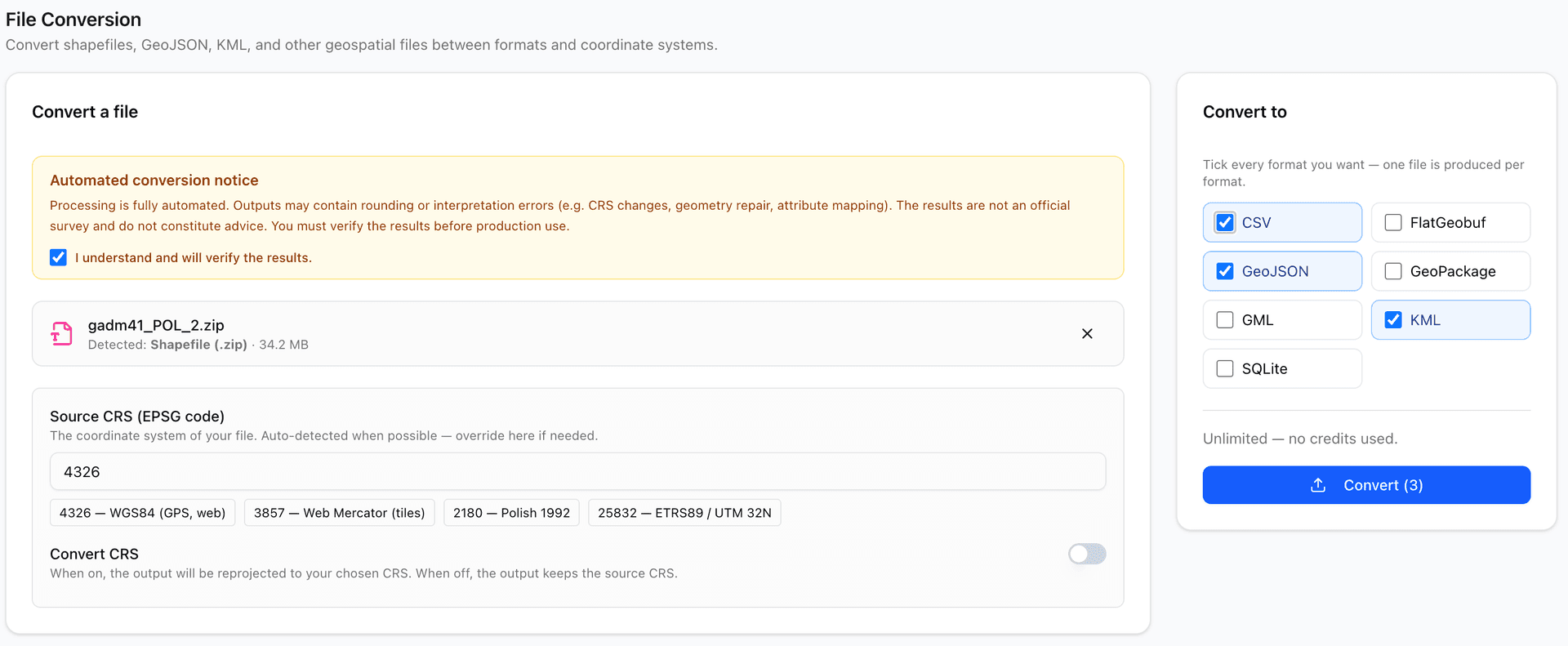
1. Sign in to MapGO.
2. Open File Submission.
3. Scroll to File Conversion.
4. Confirm the automated-conversion notice.
5. Drop in a supported geospatial file.
6. Check the source EPSG code.
7. Optionally choose a target CRS.
8. Tick one or more output formats.
9. Select Convert.
10. Open Conversion Results to follow and download each job.
File conversion should be a short step between having data and using it.
That is the goal of this new MapGO feature: fewer setup tasks, fewer repeated uploads, and a clearer path from the format you received to the format you actually need.