
Sometimes you do not need a dataset. You need to draw.
You want to outline a delivery zone, mark a few sites, trace a route, or circle an area of interest and share it with someone. That used to mean opening desktop GIS software or fighting with a generic drawing tool that knows nothing about maps.
The MapGo Workspace puts drawing directly on the map. Open it, pick a shape, and start clicking. Everything you draw becomes a real, editable layer you can restyle, rename, move, and export later.
Where the Draw Tools Live
The Workspace is organized around a category rail on the left: Start, Measure, Draw, Analyze, and Upload. Each category has a number-key shortcut, so pressing 3 jumps you straight to Draw.
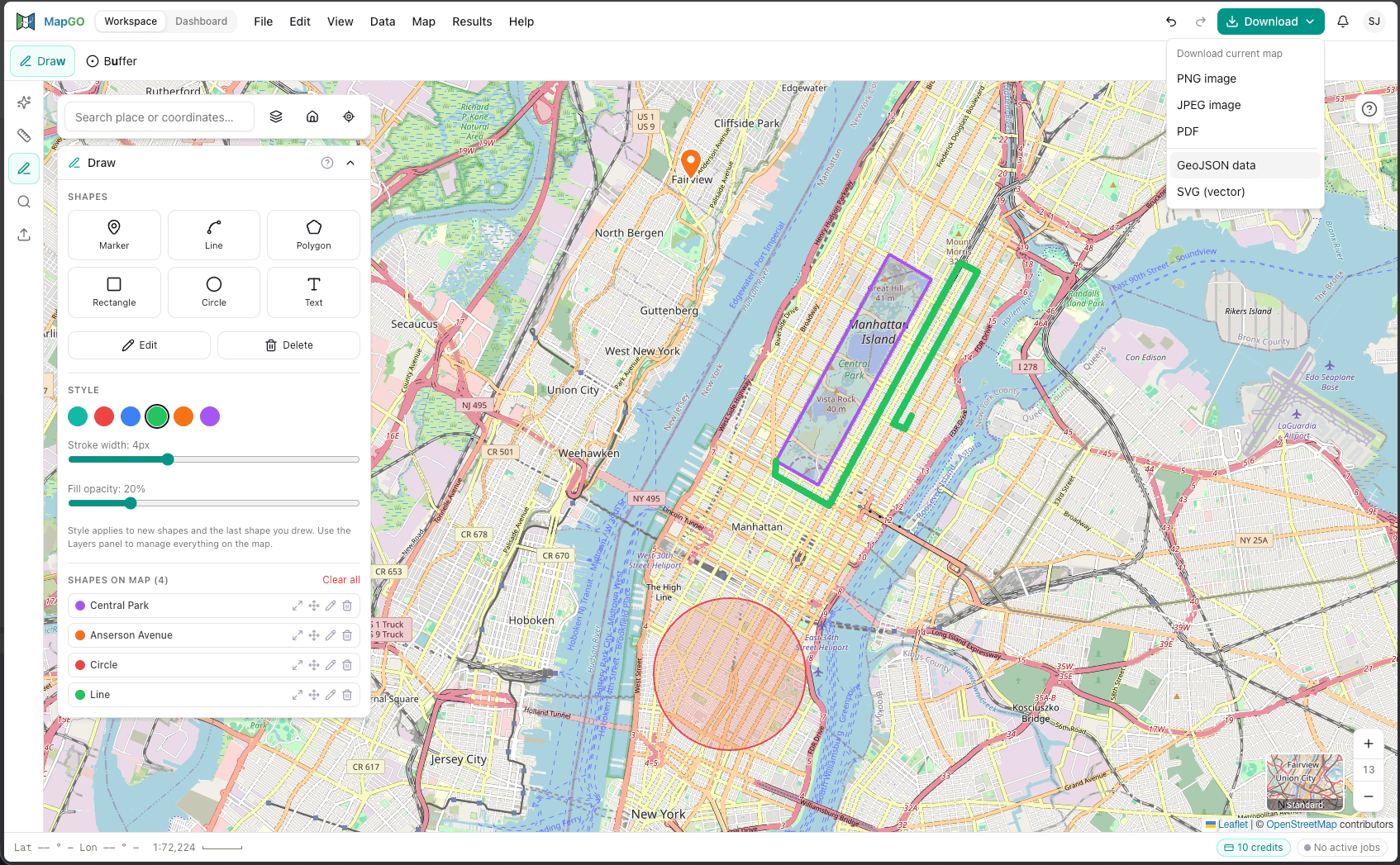
Open the Draw tool and a panel appears with a Shapes section. There are six things you can place:
- Marker - a single pin for a point of interest
- Line - a multi-point path for routes and connections
- Polygon - a closed area with as many corners as you need
- Rectangle - a quick box
- Circle - a centre point and a radius
- Text - a label placed straight onto the map
Click a shape button, then click on the map to place it. A line or polygon keeps taking points until you finish; a marker or rectangle drops in a couple of clicks. Each new shape is automatically named for you - "Polygon 1", "Line 1", and so on - so your list stays readable from the start.
Style as You Draw
Below the shapes is a Style section with three controls:
- A colour swatch row to set the stroke and fill colour
- A Stroke width slider (1–10 px)
- A Fill opacity slider (0–100%)
These apply to new shapes and to the last shape you drew, so you can place a polygon, nudge its fill down to 20%, and bump the outline to make it read clearly against the basemap. A thin bright line with a faint fill is usually the most legible way to show an area without hiding the map underneath it.
Edit and Fine-Tune
Two toggles at the top of the panel switch behaviour:
- Edit turns on vertex handles so you can drag the corners of an existing shape and reshape it.
- Delete lets you click a shape to remove it.
When you are done editing, toggle the mode back off and you are placing new shapes again.
Manage Everything from One List
As soon as you draw something, it shows up under Shapes on map, with a live count. Each row gives you quick controls:
- Zoom to shape - recenter the map on it
- Move shape - turn this on, then drag the whole shape to a new spot
- Rename / recolor - give it a meaningful name and change its colour inline
- Delete shape - remove just that one
There is also a Clear all link when you want a fresh canvas. Renaming matters more than it sounds: "Warehouse catchment" and "Phase 2 boundary" are far easier to work with later than "Polygon 3" and "Polygon 7", especially once you export.
From Sketch to Something Useful
Drawing in the Workspace is not a throwaway scribble layer. Because each shape is a proper layer, everything you draw flows into the rest of MapGo:
- The Layers panel lists every shape alongside uploaded data and measurements, so you can toggle visibility and recolour in one place.
- Export turns your drawings into a PNG or JPEG image for a report, an SVG for design work, or a GeoJSON file you can open in other GIS tools - with names and colours preserved.
So a five-minute sketch - a boundary, a route, three labelled sites - can leave the Workspace as a shareable image or a data file your colleagues can build on.
Try It
1. Open the Workspace at mapgo.io.
2. Press 3 or click Draw in the left rail.
3. Pick a shape - start with Polygon.
4. Click around the map to place corners, then finish.
5. Set a colour, stroke width, and fill opacity in Style.
6. Use Rename / recolor to name your shape.
7. Add a few more, then head to Layers or Export to do something with them.
No installation, no setup - just open the map and start drawing.